ラベル qt creator の投稿を表示しています。 すべての投稿を表示

2015年5月5日火曜日

Qt CreatorのtextEditにDrag & Dropでテキストファイルを開く

Qt CreatorのtextEditにDrag & Dropでテキストファイルを開く

Qt CreatorでText EditにDrop&Dropでテキストファイルを開きたいと思い、いろいろ調べたのですが、解決方法が見つからなかったのでstackoverflowで質問しました。

h2so5さんに親切に教えてもらいましたので、実際にやってみて細かいところを補足して紹介します。

Step1. Text Editクラスを拡張したMyTextEditクラスの作成

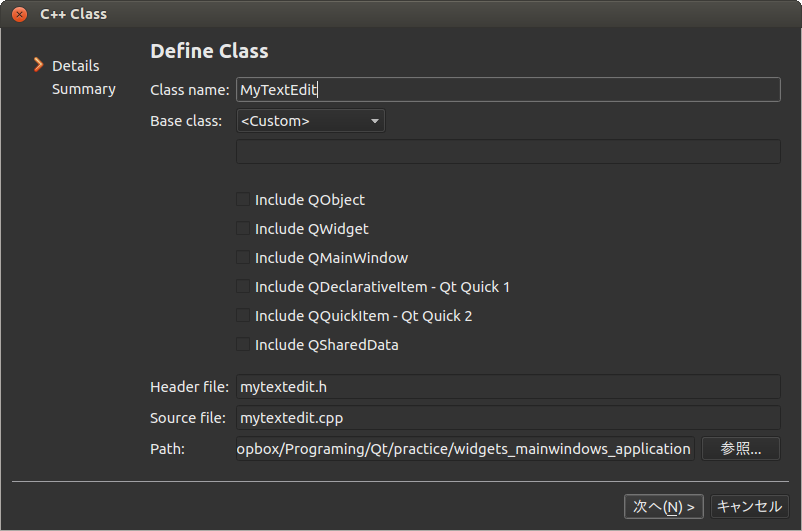
プロジェクトを右クリックし、新しいファイルを追加でC++ Classを作成します。 
Base classはなしでいいようです。
 enter image description here

Step2. ヘッダとCPPのコーディング

以下のようにヘッダとCPPをコーディングします。h2so5さんに教えてもらったものとは少し異なりますが、以下でも動いてます。

mytextedit.h

#ifndef MYTEXTEDIT_H
#define MYTEXTEDIT_H

#include <QTextEdit>

class MyTextEdit : public QTextEdit
{
public:
    MyTextEdit();
    void dragEnterEvent(QDragEnterEvent *e);
    void dropEvent(QDropEvent *e);
    MyTextEdit(QWidget *parent);
};

#endif // MYTEXTEDIT_H

mytextedit.cpp

#include "mytextedit.h"
#include <QDragEnterEvent>
#include <QMimeData>

MyTextEdit::MyTextEdit(QWidget *parent): QTextEdit(parent)
{
    setAcceptDrops(true);
}

void MyTextEdit::dragEnterEvent(QDragEnterEvent *e)
{
    if (!e->mimeData()->urls().empty())
        e->acceptProposedAction();
}

void MyTextEdit::dropEvent(QDropEvent *e)
{
    QFile file(e->mimeData()->urls().first().toLocalFile());
    if (!file.open(QIODevice::ReadOnly | QIODevice::Text))
        return;

    setPlainText(file.readAll());
    e->acceptProposedAction();
}

Step3. mainwindow.uiで作成したText EditをMyTextEditに格上げ

mainwindow.uiで右クリックし、格上げ先を指定をクリックし、
以下のようにして格上げする。

ベースクラス名: QTextEdit
格上げされたクラス名: MyTextEdit
ヘッダファイル: mytextedit.h
グローバルにインクルードする: チェックしない。

enter image description here

そうすると以下のようにtextEditがMyTextEditに格上げされます。

これでビルドすることでText EditにDrag & Dropでテキストファイルを開くことができました。

enter image description here

2015年5月1日金曜日

Qt CreatorでAndroid版をビルドする

Qt CreatorでAndroid版をビルドする

Ubuntu用でサンプルアプリができたのでQtのウリとなっているクロスプラットフォームでのビルドにチャレンジしようと思います。
まずはAndroid。

Step1. Android SDK toolのダウンロード

1. http://developer.android.com/sdk/index.html#OtherからAndroid SDK toolをダウンロード。

2. アーカイブマネージャでダウンロードしたandroid-sdk_r24.1.2-linux.tgzを解凍。

3. 解凍したフォルダにあるtoolsにandoridをTerminalで実行

$ ~/Downloads/android-sdk-linux/tools/android

4. Android SDK Managerが起動するのでインストール

enter image description here

※android-22だけでも13GBある。
 アンインストールするには、android-sdk-linuxフォルダを消せばOK.


Step2. Android NDKのインストール

1. 以下からAndroid NDKをダウンロード
http://developer.android.com/tools/sdk/ndk/index.html#Downloads

2. ダウンロードしたファイルを実行する(インストール)

$ mkdir android-ndk-linux
$ cp android-ndk-r10d-linux-x86_64.bin android-ndk-linux/.
$ chmod a+x android-ndk-r10d-linux-x86_64.bin
$ ./android-ndk-r10d-linux-x86_64.bin

※容量は3GBある。
 アンインストールするには、android-ndk-linuxフォルダを消せばOK.

以下のように追加されてます。
enter image description here

Step3. Apache Antのインストール

以下でインストールしたけど
Use Gradle instead of Antにチェックをすれば不要?

$ sudo apt-get install ant
$ which ant
/usr/bin/ant

Step4. Androidビルド用のキットを追加

これが結構行き着くまでに時間がかかりました。

① オンラインインストーラからのインストール
 http://www.qt.io/download-open-source/#section-6から
 Qt Online installer for Linux 64-bitをダウンロードし、以下で実行。

$ chmod +x qt-opensource-linux-x64-1.6.0-8-online.run
$ ./qt-opensource-linux-x64-1.6.0-8-online.run

もともとは、Offline版のfor AndroidではないただのLinux-64bit版を入れてたのですが、オンライン版なら以下のようにAndroid arm7も入れられる。

(注)パネルに置いていたショートカットは再度作りなおす必要があるようです。

enter image description here

② キットの確認
 Qt Creatorを再起動し、オプション→ビルドと実行でQtバージョンを見てみるとandroid_armv7が無事、自動検出されてました。
enter image description here
 
以下のようにデバックのところもAndroidが選択できるようになりました。

enter image description here


Step4. ビルド

早速、Androidでデバックをしてみましたが、以下のようにデバイスが見つからないとでてきました。

enter image description here

① アンドロイド仮想デバイスを作成
enter image description here

② 再度デバックを押すと以下のようにデバイスがでてくるのでOKを押す。
enter image description here

 最初は以下がでてくる。変更したいのであればddmsを使ってとのこと。
enter image description here

 少し起動が遅いが以下のように起動することができました。
 ソースコードが同じでAndroidでも動かすことができました。
 
enter image description here

次は実機をつないでみようかな。。

2015年4月30日木曜日

Qt Creatorでツールバーを作る

Qt Creatorでツールバーを作る

Qt Creatorでツールバーを追加するときに少しハマったので記載します。

ツールバーは画面左側にあるオブジェクトにはありません。
enter image description here

なので、追加する場合は、Mainwindowの下側で右クリックし、
ツールバーを追加を選択します。

enter image description here

※デフォルトだと画面上のほうはメニューバーや、ツールバーになっているので、このメニューがでてきません。

enter image description here

メニューバーとしておくことで以下のように移動可能です。

enter image description here

2015年4月26日日曜日

Qt Creatorでmainwindow.cppで追加した関数をmainwindow.hに追加する方法

Qt Creatorでmainwindow.cppで追加した関数をmainwindow.hに追加する方法

mainwindows.cppに以下のような関数を作った場合にはmainwindows.hに定義を追加する必要がありますが、
少しでも簡単に追加する方法がわかりましたのでメモっておきます。

void MainWindow::aaaaaaaaaaaa()
{

}

関数にカーソルをもってきて右クリック→Refactorで
  publicの宣言を追加 もしくは
  privateの宣言を追加
  にする。

スロットの場合もこれと同じような形で
  public slotの宣言を追加 もしくは
  protected slotの宣言を追加 もしくは
  private slotの宣言を追加
かな?

enter image description here

変数も同じような感じでヘッダファイルにかける方法はないのかなぁ。。。

そもそもC++のことがよくわかっていないのでその都度調べたいと思います。

基本的なことですが、protectedがよくわかってませんでした。

以下とのことです。
privete: クラス外部からと同様に、派生クラスからもアクセス不可。
protected: クラス外部からはアクセス不可だが、派生クラスからのみアクセス可能。
public: クラス外部からと同様に、派生クラスからもアクセス可能。

Qt CreatorでMainWindowのサイズに合わせてText Editも変わるようにする

Qt CreatorでMainWindowのサイズに合わせてText Editも変わるようにする

テキストエディタちっくなものをつくろうと思い、
mainwindow.uiをデザインで開いたときにText Editを何も考えず
配置しました。
デバックしたところmainwidowのサイズを変えてもText Editのサイズは変わりませんでした。 (まぁ当然と言えば当然)

よくみるとMainWindowにはcentralWidgetが配置されますが
禁止マークがついてます。
enter image description here

これを回避するにはMainWindowを選択した状態で右クリックすると
レイアウトというものがでてくるので、サイズ調整し、”水平に並べる”もしくは”垂直に並べる”を選択することでcentralWidgetの禁止マークがなくなり、デバックしてもMainWindowのサイズに合わせてText Editも変化してくれました。

めでたし。めでたし。

enter image description here

Qt Creatorでメニューを作る。

Qt Creatorでメニューを作る。

Qt CreatorでよくあるツールのGUIを作ってみます。

step1. リソースファイル(application.qrc)の作成とリソース(アイコン用画像)の追加

 1. プロジェクトを右クリックし、新しいファイルの追加でQt Resource Fileを選択し、xxxx.qrcファイルを作成する。

    enter image description here

 2. 作成したqrcファイルを選択し、右クリックし、プレフィックスの追加でPrefixに’/’を入れてOKをクリック。
 
    enter image description here

 3. 作成したPrefixにて右クリックをし、既存のファイルを追加を選択し、追加する。以下のように複数選択可能。
   ※Gitで管理しているためか他のフォルダから持ってくると追加できないとエラーがでるので、
    追加するファイルはあらかじめ、プロジェクトのフォルダにコピーしておいたほうがよさそう。

    enter image description here


step2. アクションを登録する

 1. *.uiファイルをダブルクリックし、Action Editorで新規をクリックし、
    enter image description here

   以下のような形でリソースを追加していく。
   ショートカットに関しては、実際にCtrl+Cを押すことで以下のように記載される。
    enter image description here

〜 2015/4/30に修正 〜

step3. メニューが押されたときの操作を追加

① Action Editorでアクションを追加したい項目で右クリックし、スロットへ移動をクリック。
enter image description here

② triggered()を選択してOK.
enter image description here

以下のようにmainwindow.hとmainwindow.cppにon_actionOpen_triggered()が自動で追加されます。

enter image description here

〜余談〜
mainToolBarにも追加したい場合は以下のようにAction EditorのアクションをDrag & Dropします。
enter image description here

以下のstep3、step4は取り消し

step3. メニューが押されたときの操作を追加

① 作成しているウインドウを選択した状態で右クリックし、シグナル/スロットを変更をクリック。
enter image description here

② ”+”を押してスロット(関数)を追加し、追加したスロットをダブルクリックし、名前を変更。

今回は、newFile(), openFile()を追加しました。

enter image description here

③ Signals & Slots Editorでアクションとスロットを接続していく。
enter image description here


step4. 実動作の実装

先ほど作成したスロットを以下のように追加する。

[mainwindow.h]

protected slots:
    void newFile();// File -> Newが押されたとき用
    void openFile();// FIle -> Openが押されたとき用

注意)ここで定義したものがmainwindows.cppにないとエラーがでました。当たり前?

[mainwindow.cpp]

void MainWindow::newFile()
{
    QMessageBox msgBox(this);
    msgBox.setText("New");
    msgBox.exec();
}

とりあえずメッセージボックスを表示した。
※mainwindows.hに#include <QMessageBox>
 を入れておくこと。

File -> Newを押したら、メッセージボックスが表示できました。
めでたし。めでたし。

 
参考:
http://see-ku.com/wiki/wiki.cgi?page=Qt%A4%CEGUI%A5%E1%A5%E2%A1%CA%B1%FE%CD%D1%CA%D4%A1%CB
http://memotiyou.blogspot.jp/2012/03/qt-c_2608.html
http://mf-atelier.sakura.ne.jp/mf-atelier/modules/tips/program/Qt/qt_mainwindow.html

2015年4月22日水曜日

Qt Creatorで日本語入力ができない

Qt Creatorで日本語入力ができない

Ubuntu 14.04にQt Creator 3.3.1を入れたのですが、日本語の入力ができませんでした。
結構時間がかかったので以下に整理しておきます。

Step1. ctrl + spaceで入力切り替えを無効にする。

 
ctrl + spaceはQt Creatorでは補完のショートカットキーとかぶってます。
いつもMOZCを使って日本語入力をしてますが日本語にする際はctrl + spaceを使っているのでこれが原因かと思って調べたところ、
恥ずかしながら半角/全角キーでもできるということを知りました。

ので、半角/全角キーが使えればいいので、以下のように入力メソッドの切り替えでctrl + spaceを空にしました。
空にするにはEscボタンでできました。
enter image description here

でもやっぱり日本語が入力できない。。

Step2. libfcitxplatforminputcontextplugin.soの作成

1 . ソースのチェックアウト

$git clone https://github.com/fcitx/fcitx-qt5.git
$cd fcitx-qt5
$git checkout 0.1.3

2 . ソースの編集

CMakeLists.txt の 5行目をコメントアウト

set(CMAKE_MODULE_PATH "${CMAKE_CURRENT_SOURCE_DIR}/cmake" ${CMAKE_MODULE_PATH})

3 . ビルド

$cmake . -DCMAKE_PREFIX_PATH=/home/xxx/Qt5.4.1/5.4/gcc_64
$make

4.srcの下にできたlibfcitxplatforminputcontextplugin.soを以下の2つのフォルダにコピー

 $ sudo cp ~/fcitx-qt5/src/libfcitxplatforminputcontextplugin.so /usr/lib/x86_64-linux-gnu/qt5/plugins/platforminputcontexts/.
 $ sudo cp ~/fcitx-qt5/src/libfcitxplatforminputcontextplugin.so ~/Qt5.4.1/Tools/QtCreator/bin/plugins/platforminputcontexts/.
 

5.設定の反映

$ export | grep IM

declare -x CLUTTER_IM_MODULE="xim"
declare -x GTK_IM_MODULE="fcitx"
declare -x IM_CONFIG_PHASE="1"
declare -x QT4_IM_MODULE="fcitx"
declare -x QT_IM_MODULE="xim"
declare -x XDG_RUNTIME_DIR="/run/user/1000"

QT_IM_MODULEがximになっているので、以下のように修正。

 $ export QT_IM_MODULE=fcitx
 $ export | grep IM
declare -x CLUTTER_IM_MODULE="xim"
declare -x GTK_IM_MODULE="fcitx"
declare -x IM_CONFIG_PHASE="1"
declare -x QT4_IM_MODULE="fcitx"
declare -x QT_IM_MODULE="fcitx"
declare -x XDG_RUNTIME_DIR="/run/user/1000"

6.Ubuntuを再起動し、Qt Creatorを起動。
 半角/全角を押すことで日本語入力が無事できました。。。

参考
https://www.falog.net/fcitx-qt5/
http://blog.pyyoshi.com/2015/03/04/fcitxhuan-jing-noqt5-4deri-ben-yu-ru-li-dekiruyounisuru/

2015年4月21日火曜日

Qt CreatorでGitを使う

Qt CreatorでGitを使う

【事前準備】
①Gitで管理するディレクトリの作成
例えば以下のようないくつかのプロジェクトを1つでバージョン管理したい場合は、ProjectAフォルダの直下に.gitフォルダができるように以下のようにする。
enter image description here 

$ mkdir /path/to/your/projectA
$ cd /path/to/your/projectA
$ git init
$ git remote add origin git@bitbucket.org:xxxxxxxx/qt.git

②Qt Creatorでプロジェクトを作成する場合のパスは
 /path/to/your/projectA
 とする。するとprojectAフォルダの下に名前で設定したフォルダができる。
 すでにprojectA自身がGitの管理下にあるので、バージョン管理システムに追加はNoneでOK。
 

1. Bitbucketのuser名と登録しているメールアドレスを以下で記載する。

$ git config --list
$ git config --global user.name "user"  
$ git config --global user.email mail.com

2. SSH Keyの登録

$ ssh-keygen
Generating public/private rsa key pair.
Enter file in which to save the key (/home/pi/.ssh/id_rsa):← Enter
Created directory '/home/pi/.ssh'. ← ~/.ssh がない場合、ディレクトリを作成します
Enter passphrase (empty for no passphrase): ← Enter
Enter same passphrase again: ← Enter
Your identification has been saved in /home/pi/.ssh/id_rsa.
Your public key has been saved in /home/pi/.ssh/id_rsa.pub.
The key fingerprint is:
xx:xx:xx:xx:xx:xx:xx:xx:xx:xx:xx:pi@raspberrypi
The key's randomart image is:

「./ssh/id_rsa.pub」の内容をBitbucketのアカウントの管理→SSHキーに登録する

【接続テスト】
以下のようにloggedがでれば接続OK

$ ssh -T git@bitbucket.org
The authenticity of host 'bitbucket.org (131.103.20.167)' can't be established.
RSA key fingerprint is xx:xx:xx:xx:xx:xx:xx:xx:xx:xx:xx.
Are you sure you want to continue connecting (yes/no)? yes
Warning: Permanently added 'bitbucket.org,131.103.20.167' (RSA) to the list of known hosts.
logged in as xxxxxxxx.

You can use git or hg to connect to Bitbucket. Shell access is disabled.

3.クライアント側(Ubuntu)の設定

vi ~/.ssh/config
Host bitbucket.org
  HostName bitbucket.org
  IdentityFile ~/.ssh/id_rsa
  User xxxxxx
  TCPKeepAlive yes
  IdentitiesOnly yes

4. コミット
 Git→ローカルディレクトリ→コミット もしくは、左下のコマンドが打てるところでgitと入力すると
 コミットがでてくるのでそれを選択。
 enter image description here
 
 コミットの画面がでてきたら、すべてを選択にチェックし、説明を記載し、コミットボタンをクリック
enter image description here

5. Qt Creatorで
  ツール→Git→リモートリポジトリ→リモートの管理
  でBitbucketのリポジトリを追加。 ※最初のみでOK
  Pushしたいリモートディレクトリを選択してPush。

Qt CreatorでPushする場合は、最初の1回目は端末で以下を実行し、
2回目からはツール→Git→リモートリポジトリ→PushでOK。


$ cd /path/to/your/projectA
$ git push -u origin master

追記
【事前準備】の①を実行すると以下の追加は不要でした。
  
enter image description here

  HTTPSのほうは、パスワードを聞いてきたが、SSHはパスワードなしでPushできました。

ここでPushしたら以下のようなメッセージがでたので、

$ git config –global push.default matching
を追加

warning: push.default is unset; its implicit value is changing in
Git 2.0 from 'matching' to 'simple'. To squelch this message
and maintain the current behavior after the default changes, use:

  git config --global push.default matching

これにより、上記のエラーはでなくなったのですが、Pushすると
まだ以下のエラーが残ってました。

No refs in common and none specified; doing nothing.
Perhaps you should specify a branch such as 'master'.
fatal: The remote end hung up unexpectedly
Everything up-to-date
このエラーは
リモートリポジトリ上にまだmasterブランチが作成されていないためとのこと。
push時の引数が省略された場合、デフォルトではリモートリポジトリとローカルリポジトリの双方に存在するブランチが対象となるため、リモートリポジトリに存在しないブランチをpushする場合は、リポジトリとブランチを明示的に指定する必要があるとのことです。

参考:
http://blog.mizoshiri.com/archives/1327
https://www.atlassian.com/ja/git/tutorial/remote-repositories#!remote
http://www.backlog.jp/git-guide/reference/trouble-shooting.html

2015年4月20日月曜日

Qt CreatorにてGit Cloneを実行する

Qt CreatorにてGit Cloneを実行する

別のパソコンからBitbucketへcommitしたリポジトリをQc Creatorに
クローンする方法を調べたので備忘録として記載します。

1. ファイル→ファイル/プロジェクトの新規作成→プロジェクトのインポートでGit Repository Cloneを選択
enter image description here

2. リポジトリのURL(以下のようなやつ)をコピーしてクローンURLにコピー
enter image description here

3. ブランチを選択するために以下の赤マルをクリック。

enter image description here

4. パスを指定して次へ
5. Bitbucketのpasswordを入力

2015年4月11日土曜日

qt creatorのサンプルをビルドしたらエラーが発生

qt creatorのサンプルをビルドしたらエラーが発生 <

Qt Creatorを初めてみようと思い、サンプルをビルドしてみたら
cannot find -lGL
というエラーがでてビルドに失敗しました。

ググってみたところ以下をインストールことでちゃんとビルドできました。
サンプルをいじって勉強したいと思います。

$ sudo apt-get install libglu1-mesa-dev